 FaLe PDF
Free · no account · your files stay on your device
Open and fill in an official form (XFA)
Some forms from authorities and embassies only show “Please wait …” or an empty page. FaLe PDF opens them, you fill them in and save them again.
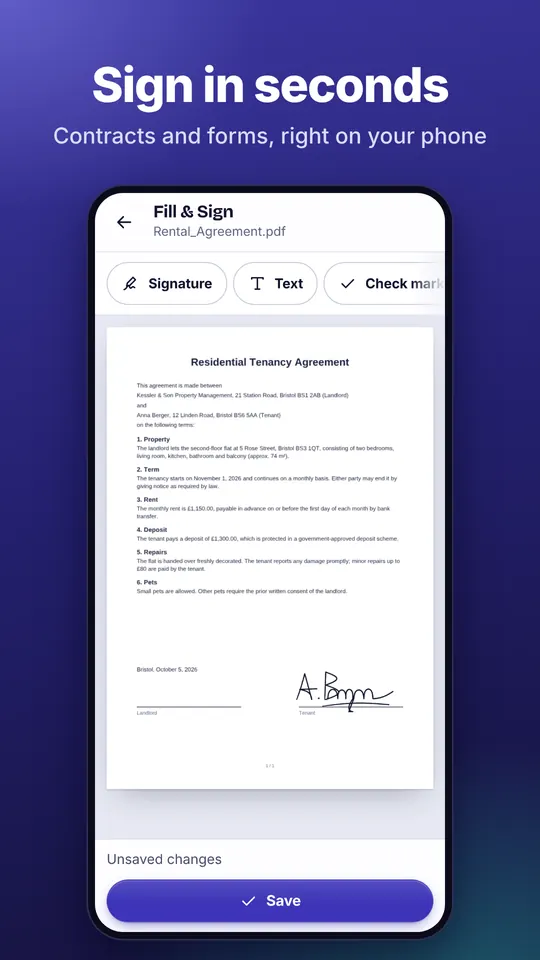
How it works
- Open the form Open the PDF in FaLe PDF. If FaLe recognises an official form, “Fill in form” appears.
- Fill in and sign Fill in the fields. On a signature line, one tap opens the signature pad.
- Save or print “Save” keeps the original form, as the authority expects it. “As a normal PDF” and “Print” also contain your signature.
Why FaLe PDF
- No special programThese forms otherwise only open in one particular PDF program – FaLe opens them in the browser, on your phone and on your computer.
- Two-finger zoomSimply zoom in on small boxes – ideal on a phone.
- SafeProgram code inside the form is never run, for safety reasons, and nothing is uploaded.
Frequently asked questions
How do I recognise an XFA form?
A normal PDF viewer often only shows the note “Please wait …” or an empty page. FaLe recognises such forms automatically.
Will the authority accept the saved form?
“Save” keeps the original format with your entries. If a normal PDF or a print-out is required, use “As a normal PDF” or “Print”.
Do calculations in the form work?
Scripts in the form are not run, for safety reasons. Enter automatic totals or checks yourself.
What does it cost?
Nothing – no account and no sign-up.
Try it now
FaLe PDF runs in the browser, on your phone and on your computer. Every feature is free.