 FaLe PDF
Free · no account · your files stay on your device
Fill in a PDF form
Fill in form fields, or simply type where something belongs on a scanned form – with large text and clear buttons.
How it works
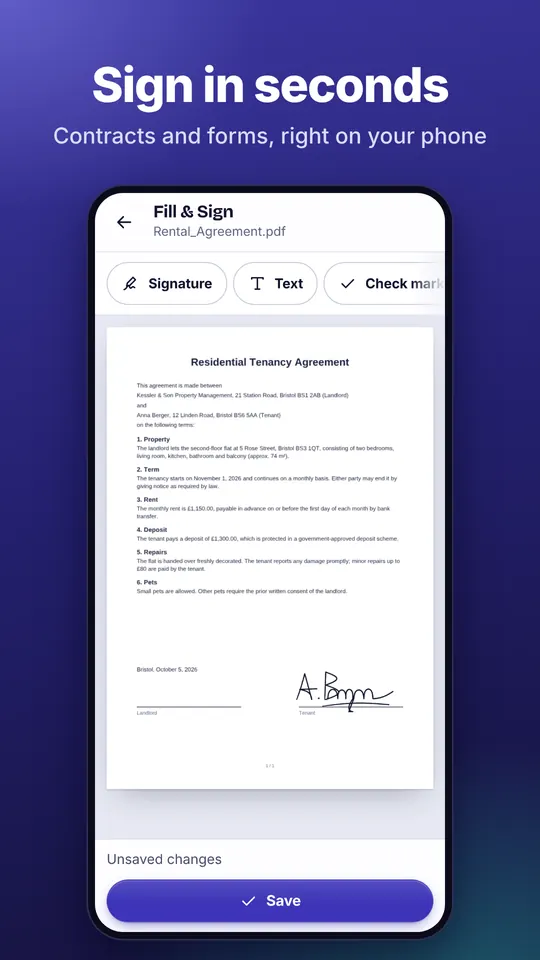
- Open the form Open the PDF and choose “Fill & Sign”. Existing fields are highlighted.
- Fill in the fields Tap a field and start typing. For forms without fields, tap “Text” and then the spot on the form.
- Sign and save Add the date, check marks and your signature if needed, then tap “Save”.
Why FaLe PDF
- Even without fieldsA scanned paper form has no fields – you still type in exactly the right place.
- Big, simple controlsText size with A− and A+, colours with one tap, everything in one bar at the bottom.
- Official formsFaLe also opens special official forms (XFA) that otherwise only open in one particular PDF program.
Frequently asked questions
What if the form has no fields?
Tap “Text” and then the spot on the form. For tick boxes there is “Check mark” with ✓, ✗ or a dot.
Can I change the form later?
When saving, the fields are normally fixed so nobody can change them unnoticed. If you want to change something later, untick the option to fix the fields before saving.
Are my entries uploaded?
No. Filling in happens entirely on your device.
What about forms that only show “Please wait …”?
These are usually special official forms (XFA). Open them with “Fill in official form” in FaLe PDF.
Try it now
FaLe PDF runs in the browser, on your phone and on your computer. Every feature is free.